
Kubernetes Gateway API Tutorial
Maintained: https://github.com/k8ssecurity/gateway_api_tutorial/
A complete hands-on guide to deploying the Kubernetes Gateway API with Envoy Gateway on a local KIND cluster using Cilium CNI.
Target Audience: Network engineers with basic Linux/Docker knowledge but limited Kubernetes experience.
Table of Contents
- Overview
- Key Concepts
- Prerequisites
- Part 1: Environment Setup
- Part 2: Create KIND Cluster with Cilium
- Part 3: Install MetalLB for LoadBalancer Support
- Part 4: Install Envoy Gateway
- Part 5: Deploy Gateway and Sample Application
- Part 6: Testing HTTP and HTTPS
- Part 7: Advanced Routing Examples
- Part 8: Cleanup
- Troubleshooting
- References
Overview
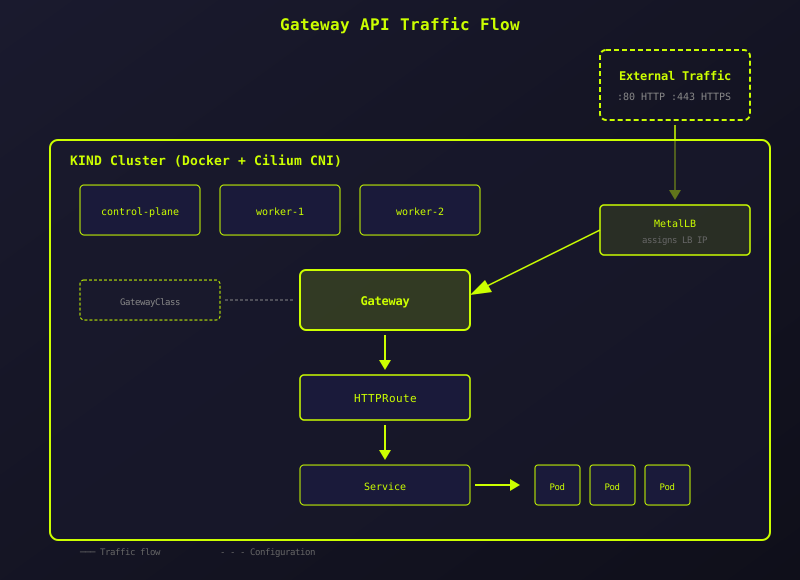
This tutorial walks you through setting up a complete Kubernetes Gateway API environment locally. By the end, you'll have:
- A 3-node KIND (Kubernetes IN Docker) cluster
- Cilium as the Container Network Interface (CNI)
- MetalLB for LoadBalancer IP allocation
- Envoy Gateway as the Gateway API implementation
- A sample web application exposed via HTTP and HTTPS
Architecture Diagram
Key Concepts
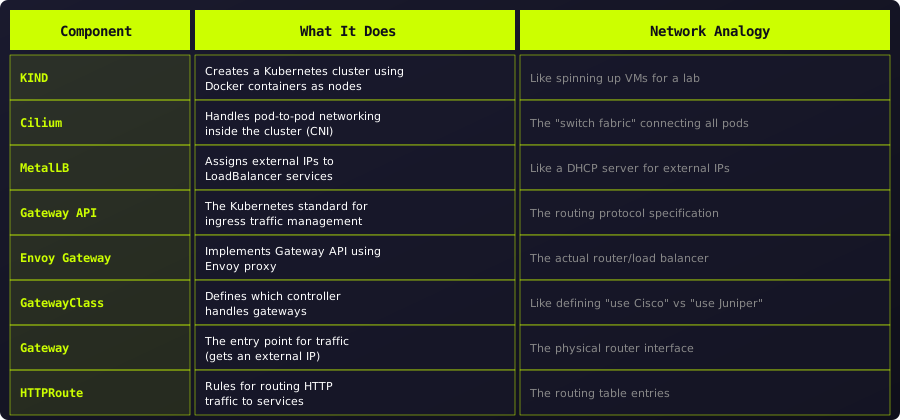
Before we begin, let's understand the key components:
Prerequisites
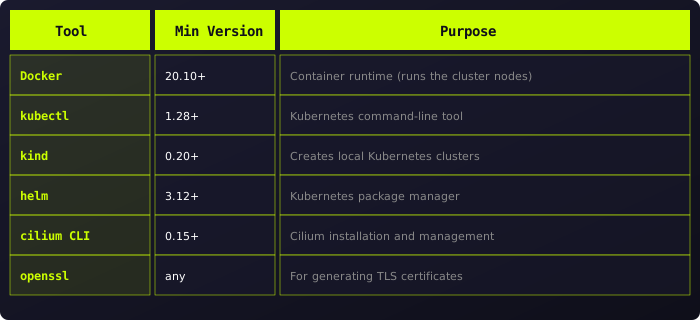
Before starting, ensure you have the following installed:
Part 1: Environment Setup
We need to install the CLI tools that will let us create and manage our Kubernetes cluster.
macOS Setup
# Install Homebrew if not present (macOS package manager)
/bin/bash -c "$(curl -fsSL https://raw.githubusercontent.com/Homebrew/install/HEAD/install.sh)"

# Install Docker Desktop - this runs containers on your Mac
brew install --cask docker
# Start Docker Desktop from Applications folder

# Install kubectl - the main tool for talking to Kubernetes
brew install kubectl

# Install KIND - creates Kubernetes clusters using Docker containers
brew install kind

# Install Helm - like apt/yum but for Kubernetes applications
brew install helm

# Install Cilium CLI - manages the Cilium CNI plugin
CILIUM_CLI_VERSION=$(curl -s https://raw.githubusercontent.com/cilium/cilium-cli/main/stable.txt)
CLI_ARCH=amd64
if [ "$(uname -m)" = "arm64" ]; then CLI_ARCH=arm64; fi
curl -L --fail --remote-name-all https://github.com/cilium/cilium-cli/releases/download/${CILIUM_CLI_VERSION}/cilium-darwin-${CLI_ARCH}.tar.gz{,.sha256sum}
shasum -a 256 -c cilium-darwin-${CLI_ARCH}.tar.gz.sha256sum
sudo tar xzvfC cilium-darwin-${CLI_ARCH}.tar.gz /usr/local/bin
rm cilium-darwin-${CLI_ARCH}.tar.gz{,.sha256sum}

# Verify all tools are installed
echo "=== Checking installations ==="
docker --version
kubectl version --client
kind version
helm version --short
cilium version --client
Linux Setup (Ubuntu/Debian)
# Update package manager
sudo apt-get update && sudo apt-get upgrade -y

# Install Docker - the container runtime
curl -fsSL https://get.docker.com -o get-docker.sh
sudo sh get-docker.sh
sudo usermod -aG docker $USER
newgrp docker  # Apply group membership without logout

# Install kubectl - Kubernetes CLI
curl -LO "https://dl.k8s.io/release/$(curl -L -s https://dl.k8s.io/release/stable.txt)/bin/linux/amd64/kubectl"
sudo install -o root -g root -m 0755 kubectl /usr/local/bin/kubectl
rm kubectl

# Install KIND - local Kubernetes clusters
[ $(uname -m) = x86_64 ] && curl -Lo ./kind https://kind.sigs.k8s.io/dl/v0.24.0/kind-linux-amd64
[ $(uname -m) = aarch64 ] && curl -Lo ./kind https://kind.sigs.k8s.io/dl/v0.24.0/kind-linux-arm64
chmod +x ./kind
sudo mv ./kind /usr/local/bin/kind

# Install Helm - Kubernetes package manager
curl https://raw.githubusercontent.com/helm/helm/main/scripts/get-helm-3 | bash

# Install Cilium CLI - CNI management tool
CILIUM_CLI_VERSION=$(curl -s https://raw.githubusercontent.com/cilium/cilium-cli/main/stable.txt)
CLI_ARCH=amd64
if [ "$(uname -m)" = "aarch64" ]; then CLI_ARCH=arm64; fi
curl -L --fail --remote-name-all https://github.com/cilium/cilium-cli/releases/download/${CILIUM_CLI_VERSION}/cilium-linux-${CLI_ARCH}.tar.gz{,.sha256sum}
sha256sum --check cilium-linux-${CLI_ARCH}.tar.gz.sha256sum
sudo tar xzvfC cilium-linux-${CLI_ARCH}.tar.gz /usr/local/bin
rm cilium-linux-${CLI_ARCH}.tar.gz{,.sha256sum}

# Verify all tools are installed
echo "=== Checking installations ==="
docker --version
kubectl version --client
kind version
helm version --short
cilium version --client
Part 2: Create KIND Cluster with Cilium
In this section, we create a 3-node Kubernetes cluster and install Cilium as the network plugin. Think of this as setting up 3 virtual routers and connecting them with a switch fabric.
Step 2.1: Create KIND Configuration
KIND needs a configuration file that tells it how many nodes to create and how to configure networking. We disable the default CNI because we'll use Cilium instead.
Create a file named kind-config.yaml:
# kind-config.yaml
# This creates a 3-node cluster: 1 control-plane + 2 workers

kind: Cluster
apiVersion: kind.x-k8s.io/v1alpha4
name: gateway-api-lab
nodes:
  # The control-plane runs the Kubernetes API server and scheduler
  - role: control-plane
    kubeadmConfigPatches:
      - |
        kind: InitConfiguration
        nodeRegistration:
          kubeletExtraArgs:
            node-labels: "ingress-ready=true"
    # Map container ports to host ports for external access
    extraPortMappings:
      - containerPort: 80
        hostPort: 80
        protocol: TCP
      - containerPort: 443
        hostPort: 443
        protocol: TCP
  # Worker nodes run your application pods
  - role: worker
  - role: worker
networking:
  # Disable default CNI - we'll install Cilium instead
  disableDefaultCNI: true
  # Disable kube-proxy - Cilium replaces it with eBPF
  kubeProxyMode: none
  # Pod network CIDR - internal IPs for pods
  podSubnet: "10.244.0.0/16"
  # Service network CIDR - internal IPs for services
  serviceSubnet: "10.96.0.0/12"
Step 2.2: Create the Cluster
This command creates 3 Docker containers that act as Kubernetes nodes. It takes about 1-2 minutes.
# Create the cluster using our config file
kind create cluster --config=kind-config.yaml

# Check the nodes - they'll be "NotReady" until we install Cilium
kubectl get nodes
Expected output (nodes are NotReady because no CNI is installed yet):
NAME                             STATUS     ROLES           AGE   VERSION
gateway-api-lab-control-plane    NotReady   control-plane   30s   v1.31.0
gateway-api-lab-worker           NotReady   <none>          10s   v1.31.0
gateway-api-lab-worker2          NotReady   <none>          10s   v1.31.0
Step 2.3: Install Cilium CNI
Cilium provides the network connectivity between pods. Without a CNI, pods can't communicate. We also enable Cilium to replace kube-proxy for better performance.
# Install Cilium with kube-proxy replacement
# This takes 2-3 minutes as it downloads and starts the Cilium agents
cilium install \
  --version 1.18.6 \
  --set kubeProxyReplacement=true \
  --set k8sServiceHost=gateway-api-lab-control-plane \
  --set k8sServicePort=6443

# Wait for Cilium to be fully ready
cilium status --wait

# Now check nodes again - they should be "Ready"
kubectl get nodes
Expected output:
NAME                             STATUS   ROLES           AGE     VERSION
gateway-api-lab-control-plane    Ready    control-plane   3m30s   v1.31.0
gateway-api-lab-worker           Ready    <none>          3m10s   v1.31.0
gateway-api-lab-worker2          Ready    <none>          3m10s   v1.31.0
Step 2.4: Verify Cilium Installation
# Check Cilium pods are running on each node
kubectl -n kube-system get pods -l k8s-app=cilium

# Optional: Run connectivity test (takes a few minutes)
# cilium connectivity test
Part 3: Install MetalLB for LoadBalancer Support
In cloud environments (AWS, GCP, Azure), when you create a LoadBalancer service, the cloud provider assigns an external IP. KIND runs locally and has no cloud provider, so we use MetalLB to assign IPs from a local pool. Think of it as running your own "mini cloud load balancer".
Step 3.1: Install MetalLB
# Install MetalLB components
kubectl apply -f https://raw.githubusercontent.com/metallb/metallb/v0.15.3/config/manifests/metallb-native.yaml

# Wait for MetalLB pods to be ready (about 30 seconds)
kubectl wait --namespace metallb-system \
  --for=condition=ready pod \
  --selector=app=metallb \
  --timeout=120s
Step 3.2: Find the Docker Network Range
MetalLB needs to know what IP range it can use. We'll use IPs from the KIND Docker network.
# Get the KIND network subnet (usually 172.18.0.0/16 or similar)
docker network inspect kind -f '{{range .IPAM.Config}}{{.Subnet}}{{end}}'
This typically returns something like 172.18.0.0/16.
Step 3.3: Configure MetalLB IP Pool
Create metallb-config.yaml with an IP range from the KIND network. We use the .255.x range to avoid conflicts with existing containers.
# metallb-config.yaml
# This tells MetalLB what IPs it can hand out to LoadBalancer services

apiVersion: metallb.io/v1beta1
kind: IPAddressPool
metadata:
  name: kind-pool
  namespace: metallb-system
spec:
  # Use IPs from 172.18.255.200 to 172.18.255.250
  # Adjust the 172.18 prefix to match your docker network inspect output
  addresses:
    - 172.18.255.200-172.18.255.250
---
apiVersion: metallb.io/v1beta1
kind: L2Advertisement
metadata:
  name: kind-l2
  namespace: metallb-system
spec:
  ipAddressPools:
    - kind-pool
# Apply the MetalLB configuration
kubectl apply -f metallb-config.yaml

# Verify the IP pool is created
kubectl get ipaddresspools -n metallb-system
Part 4: Install Envoy Gateway
Envoy Gateway is the software that actually handles incoming traffic and routes it to your applications. It implements the Gateway API specification using Envoy proxy under the hood.
Step 4.1: Install Gateway API CRDs (Experimental Channel)
First, we install the Gateway API Custom Resource Definitions (CRDs). These define the new resource types (Gateway, HTTPRoute, TLSRoute, etc.) that Kubernetes will understand.
We use the Experimental channel to get TLSRoute support (for TLS passthrough routing):
- Standard channel: GatewayClass, Gateway, HTTPRoute, GRPCRoute
- Experimental channel: All standard + TLSRoute, TCPRoute, UDPRoute
# Install the EXPERIMENTAL Gateway API CRDs (includes TLSRoute)
# Use --server-side to handle large CRD manifests
kubectl apply --server-side -f https://github.com/kubernetes-sigs/gateway-api/releases/download/v1.4.1/experimental-install.yaml

# Verify CRDs are installed
kubectl get crds | grep gateway
Expected output:
gatewayclasses.gateway.networking.k8s.io       2026-xx-xx
gateways.gateway.networking.k8s.io             2026-xx-xx
grpcroutes.gateway.networking.k8s.io           2026-xx-xx
httproutes.gateway.networking.k8s.io           2026-xx-xx
referencegrants.gateway.networking.k8s.io      2026-xx-xx
tcproutes.gateway.networking.k8s.io            2026-xx-xx   # Experimental
tlsroutes.gateway.networking.k8s.io            2026-xx-xx   # Experimental
udproutes.gateway.networking.k8s.io            2026-xx-xx   # Experimental
Step 4.2: Install Envoy Gateway using Helm
Now we install the Envoy Gateway controller. This watches for Gateway resources and creates the actual Envoy proxy pods to handle traffic.
# Install Envoy Gateway
# --skip-crds because we already installed Gateway API CRDs above
helm install eg oci://docker.io/envoyproxy/gateway-helm \
  --version v1.6.3 \
  -n envoy-gateway-system \
  --create-namespace \
  --skip-crds

# Wait for the controller to be ready
kubectl wait --timeout=5m -n envoy-gateway-system deployment/envoy-gateway --for=condition=Available

# Verify it's running
kubectl get pods -n envoy-gateway-system
Expected output:
NAME                             READY   STATUS    RESTARTS   AGE
envoy-gateway-xxxxxxxxx-xxxxx    1/1     Running   0          60s
Step 4.3: Create the GatewayClass
A GatewayClass defines which controller handles our Gateways. Think of it like choosing which vendor's router to use. When using --skip-crds, we need to create this manually.
# Create the GatewayClass
kubectl apply -f - <<EOF
apiVersion: gateway.networking.k8s.io/v1
kind: GatewayClass
metadata:
  name: eg
spec:
  controllerName: gateway.envoyproxy.io/gatewayclass-controller
EOF

# Verify it's accepted by the controller
kubectl get gatewayclass
Expected output:
NAME   CONTROLLER                                      ACCEPTED   AGE
eg     gateway.envoyproxy.io/gatewayclass-controller   True       5s
Important: The
ACCEPTED: Truestatus means the Envoy Gateway controller recognized this GatewayClass and is ready to handle Gateways that reference it.
Part 5: Deploy Gateway and Sample Application
Now we'll create the Gateway (which gets an external IP) and deploy a simple web application. The Gateway acts like a load balancer that receives external traffic and routes it to your application.
Step 5.1: Create a Namespace
Namespaces help organize resources. We'll put our application in its own namespace.
kubectl create namespace demo-app
Step 5.2: Create TLS Certificate
For HTTPS to work, we need a TLS certificate. We'll generate a self-signed certificate for testing. In production, you'd use cert-manager or certificates from a real CA.
# Generate a self-signed certificate valid for *.local.dev
openssl req -x509 -nodes -days 365 -newkey rsa:2048 \
  -keyout /tmp/tls.key -out /tmp/tls.crt \
  -subj "/CN=local.dev" \
  -addext "subjectAltName=DNS:*.local.dev,DNS:local.dev,DNS:localhost"

# Verify the certificate was created correctly
openssl x509 -in /tmp/tls.crt -text -noout | head -15

# Create a Kubernetes secret containing the certificate
# This secret will be referenced by the Gateway for HTTPS
kubectl create secret tls eg-tls-cert \
  --cert=/tmp/tls.crt \
  --key=/tmp/tls.key \
  -n envoy-gateway-system

# Clean up temp files
rm /tmp/tls.key /tmp/tls.crt

# Verify the secret was created
kubectl get secret eg-tls-cert -n envoy-gateway-system
Step 5.3: Create the Gateway
The Gateway defines the entry points for traffic (like configuring interfaces on a router). We'll create listeners for both HTTP (port 80) and HTTPS (port 443).
kubectl apply -f - <<EOF
apiVersion: gateway.networking.k8s.io/v1
kind: Gateway
metadata:
  name: eg-gateway
  namespace: envoy-gateway-system
spec:
  # Use the GatewayClass we created earlier
  gatewayClassName: eg
  listeners:
    # HTTP listener on port 80
    - name: http
      protocol: HTTP
      port: 80
      allowedRoutes:
        namespaces:
          from: All  # Allow routes from any namespace
    # HTTPS listener on port 443
    - name: https
      protocol: HTTPS
      port: 443
      allowedRoutes:
        namespaces:
          from: All
      tls:
        mode: Terminate  # Terminate TLS at the gateway
        certificateRefs:
          - name: eg-tls-cert  # Reference our TLS secret
            kind: Secret
EOF

# Wait for the Gateway to get an IP address
kubectl wait --timeout=5m -n envoy-gateway-system gateway/eg-gateway --for=condition=Programmed

# Check the Gateway status
kubectl get gateway -n envoy-gateway-system
Expected output:
NAME         CLASS   ADDRESS          PROGRAMMED   AGE
eg-gateway   eg      172.18.255.200   True         30s
Step 5.4: Verify Both Ports are Exposed
Check that the LoadBalancer service has both port 80 and 443:
kubectl get svc -n envoy-gateway-system
Expected output (note both 80 and 443):
NAME                                             TYPE           CLUSTER-IP      EXTERNAL-IP      PORT(S)                         AGE
envoy-envoy-gateway-system-eg-gateway-xxxxxxxx   LoadBalancer   10.x.x.x        172.18.255.200   80:xxxxx/TCP,443:xxxxx/TCP      30s
Troubleshooting: If you only see port 80, check the Gateway status for TLS errors:
kubectl describe gateway eg-gateway -n envoy-gateway-system | grep -A 5 "https"
Step 5.5: Save the Gateway IP
# Store the Gateway IP in an environment variable for easy testing
export GATEWAY_IP=$(kubectl get gateway/eg-gateway -n envoy-gateway-system -o jsonpath='{.status.addresses[0].value}')
echo "Gateway IP: $GATEWAY_IP"
Step 5.6: Deploy Sample Web Application
Now let's deploy a simple web application and expose it through the Gateway.
kubectl apply -f - <<EOF
# Deployment - runs 3 copies of our web app
apiVersion: apps/v1
kind: Deployment
metadata:
  name: webapp
  namespace: demo-app
spec:
  replicas: 3
  selector:
    matchLabels:
      app: webapp
  template:
    metadata:
      labels:
        app: webapp
    spec:
      containers:
        - name: webapp
          image: hashicorp/http-echo:1.0
          args:
            - "-text=Hello from Gateway API!"
            - "-listen=:8080"
          ports:
            - containerPort: 8080
---
# Service - provides a stable internal endpoint for the pods
apiVersion: v1
kind: Service
metadata:
  name: webapp-service
  namespace: demo-app
spec:
  selector:
    app: webapp
  ports:
    - port: 80
      targetPort: 8080
---
# HTTPRoute - tells the Gateway how to route traffic to our service
apiVersion: gateway.networking.k8s.io/v1
kind: HTTPRoute
metadata:
  name: webapp-route
  namespace: demo-app
spec:
  parentRefs:
    # Attach this route to our Gateway
    - name: eg-gateway
      namespace: envoy-gateway-system
  rules:
    # Route all traffic to the webapp service
    - backendRefs:
        - name: webapp-service
          port: 80
EOF

# Wait for the pods to be ready
kubectl wait --timeout=120s -n demo-app deployment/webapp --for=condition=Available

# Check the pods are running
kubectl get pods -n demo-app
Part 6: Testing HTTP and HTTPS
Now let's verify everything works by sending requests to our Gateway.
Test HTTP (Port 80)
# Simple HTTP request
curl http://$GATEWAY_IP/
Expected output:
Hello from Gateway API!
Test HTTPS (Port 443)
# HTTPS request (-k skips certificate validation for self-signed certs)
curl -k https://$GATEWAY_IP/
Expected output:
Hello from Gateway API!
Test HTTPS with Verbose Output
To see the TLS handshake details:
curl -kv https://$GATEWAY_IP/ 2>&1 | grep -E "(SSL|subject|issuer|expire)"
View the TLS Certificate
echo | openssl s_client -connect $GATEWAY_IP:443 2>/dev/null | openssl x509 -text -noout | head -20
Test Load Balancing
Make multiple requests to see responses from different pods:
for i in {1..5}; do
  echo "Request $i:"
  curl -s http://$GATEWAY_IP/
done
Part 7: Advanced Routing Examples
Gateway API supports sophisticated routing rules. Here are some examples.
7.1: Traffic Splitting (Canary Deployment)
Split traffic between two versions of an application - useful for gradual rollouts.
# First, deploy a canary version
kubectl apply -f - <<EOF
apiVersion: apps/v1
kind: Deployment
metadata:
  name: webapp-canary
  namespace: demo-app
spec:
  replicas: 1
  selector:
    matchLabels:
      app: webapp
      version: canary
  template:
    metadata:
      labels:
        app: webapp
        version: canary
    spec:
      containers:
        - name: webapp
          image: hashicorp/http-echo:1.0
          args:
            - "-text=CANARY VERSION - New Features!"
            - "-listen=:8080"
          ports:
            - containerPort: 8080
---
apiVersion: v1
kind: Service
metadata:
  name: webapp-canary-service
  namespace: demo-app
spec:
  selector:
    app: webapp
    version: canary
  ports:
    - port: 80
      targetPort: 8080
EOF

# Update HTTPRoute to split traffic: 90% stable, 10% canary
kubectl apply -f - <<EOF
apiVersion: gateway.networking.k8s.io/v1
kind: HTTPRoute
metadata:
  name: webapp-route
  namespace: demo-app
spec:
  parentRefs:
    - name: eg-gateway
      namespace: envoy-gateway-system
  rules:
    - backendRefs:
        - name: webapp-service
          port: 80
          weight: 90    # 90% of traffic
        - name: webapp-canary-service
          port: 80
          weight: 10    # 10% of traffic
EOF
Test it - approximately 1 in 10 requests should show "CANARY VERSION":
for i in {1..20}; do curl -s http://$GATEWAY_IP/; done
7.2: Header-Based Routing
Route requests based on HTTP headers - useful for A/B testing or feature flags.
kubectl apply -f - <<EOF
apiVersion: gateway.networking.k8s.io/v1
kind: HTTPRoute
metadata:
  name: webapp-route
  namespace: demo-app
spec:
  parentRefs:
    - name: eg-gateway
      namespace: envoy-gateway-system
  rules:
    # If header X-Version: canary, route to canary
    - matches:
        - headers:
            - name: X-Version
              value: canary
      backendRefs:
        - name: webapp-canary-service
          port: 80
    # Default: route to stable
    - backendRefs:
        - name: webapp-service
          port: 80
EOF
Test it:
# Without header - goes to stable
curl http://$GATEWAY_IP/

# With header - goes to canary
curl -H "X-Version: canary" http://$GATEWAY_IP/
7.3: Path-Based Routing
Route different URL paths to different services.
kubectl apply -f - <<EOF
apiVersion: gateway.networking.k8s.io/v1
kind: HTTPRoute
metadata:
  name: webapp-route
  namespace: demo-app
spec:
  parentRefs:
    - name: eg-gateway
      namespace: envoy-gateway-system
  rules:
    # /canary/* goes to canary service
    - matches:
        - path:
            type: PathPrefix
            value: /canary
      backendRefs:
        - name: webapp-canary-service
          port: 80
    # Everything else goes to stable
    - matches:
        - path:
            type: PathPrefix
            value: /
      backendRefs:
        - name: webapp-service
          port: 80
EOF
Test it:
curl http://$GATEWAY_IP/          # Goes to stable
curl http://$GATEWAY_IP/canary    # Goes to canary
7.4: TLS Passthrough with TLSRoute
TLSRoute is an experimental feature that routes encrypted TLS traffic without terminating it at the Gateway. The Gateway forwards traffic based on SNI (Server Name Indication) only - it never decrypts the traffic.
Network Analogy: Like SSL/TLS passthrough on a traditional load balancer.
When to use TLSRoute instead of HTTPRoute + Gateway TLS:
- End-to-end encryption requirements (compliance, security)
- Backend manages its own certificates
- mTLS between client and backend
- Performance (avoid double TLS termination)
Step 1: Deploy a TLS-enabled Backend
First, we need a backend that serves HTTPS. We'll create an nginx pod with its own TLS certificate:
# Create a self-signed certificate for the backend
openssl req -x509 -nodes -days 365 -newkey rsa:2048 \
    -keyout /tmp/backend-tls.key -out /tmp/backend-tls.crt \
    -subj "/CN=secure.local.dev" \
    -addext "subjectAltName=DNS:secure.local.dev,DNS:localhost"

# Create a secret in demo-app namespace for the backend certificate
kubectl create secret tls backend-tls-cert \
    --cert=/tmp/backend-tls.crt \
    --key=/tmp/backend-tls.key \
    -n demo-app

# Clean up temp files
rm -f /tmp/backend-tls.key /tmp/backend-tls.crt

# Deploy nginx with TLS enabled
kubectl apply -f - <<EOF
apiVersion: v1
kind: ConfigMap
metadata:
  name: nginx-tls-config
  namespace: demo-app
data:
  default.conf: |
    server {
        listen 443 ssl;
        server_name secure.local.dev;
        ssl_certificate /etc/nginx/ssl/tls.crt;
        ssl_certificate_key /etc/nginx/ssl/tls.key;
        location / {
            return 200 'Hello from TLS Passthrough Backend!\nThe Gateway did NOT decrypt this traffic.\nYour connection is end-to-end encrypted.\n';
            add_header Content-Type text/plain;
        }
    }
---
apiVersion: apps/v1
kind: Deployment
metadata:
  name: webapp-tls
  namespace: demo-app
spec:
  replicas: 1
  selector:
    matchLabels:
      app: webapp-tls
  template:
    metadata:
      labels:
        app: webapp-tls
    spec:
      containers:
        - name: nginx
          image: nginx:alpine
          ports:
            - containerPort: 443
          volumeMounts:
            - name: tls-certs
              mountPath: /etc/nginx/ssl
              readOnly: true
            - name: nginx-config
              mountPath: /etc/nginx/conf.d
      volumes:
        - name: tls-certs
          secret:
            secretName: backend-tls-cert
        - name: nginx-config
          configMap:
            name: nginx-tls-config
---
apiVersion: v1
kind: Service
metadata:
  name: webapp-tls-service
  namespace: demo-app
spec:
  selector:
    app: webapp-tls
  ports:
    - port: 443
      targetPort: 443
EOF

# Wait for the TLS backend to be ready
kubectl wait --timeout=60s -n demo-app deployment/webapp-tls --for=condition=Available
Step 2: Create the Passthrough Gateway
# Create a Gateway listener with TLS Passthrough mode
kubectl apply -f - <<EOF
apiVersion: gateway.networking.k8s.io/v1
kind: Gateway
metadata:
  name: eg-gateway-passthrough
  namespace: envoy-gateway-system
spec:
  gatewayClassName: eg
  listeners:
    - name: tls-passthrough
      protocol: TLS
      port: 8443
      tls:
        mode: Passthrough    # KEY: Don't decrypt, forward based on SNI
      allowedRoutes:
        namespaces:
          from: All
EOF

# Wait for Gateway to be ready
kubectl wait --timeout=2m -n envoy-gateway-system gateway/eg-gateway-passthrough --for=condition=Programmed
Step 3: Create the TLSRoute
# Create a TLSRoute (uses v1alpha2 API - experimental)
kubectl apply -f - <<EOF
apiVersion: gateway.networking.k8s.io/v1alpha2
kind: TLSRoute
metadata:
  name: secure-app-route
  namespace: demo-app
spec:
  parentRefs:
    - name: eg-gateway-passthrough
      namespace: envoy-gateway-system
      sectionName: tls-passthrough
  hostnames:
    - "secure.local.dev"      # SNI hostname to match
  rules:
    - backendRefs:
        - name: webapp-tls-service
          port: 443
EOF
Step 4: Test TLS Passthrough
# Get the passthrough Gateway IP
PASSTHROUGH_IP=$(kubectl get gateway/eg-gateway-passthrough -n envoy-gateway-system -o jsonpath='{.status.addresses[0].value}')
echo "Passthrough Gateway IP: $PASSTHROUGH_IP"

# Add to /etc/hosts (or use --resolve)
echo "$PASSTHROUGH_IP secure.local.dev" | sudo tee -a /etc/hosts

# Test TLS passthrough - traffic goes through Gateway but stays encrypted end-to-end
curl -k https://secure.local.dev:8443/

# Alternative: Use --resolve instead of /etc/hosts
curl -k --resolve secure.local.dev:8443:$PASSTHROUGH_IP https://secure.local.dev:8443/
Expected output:
Hello from TLS Passthrough Backend!
The Gateway did NOT decrypt this traffic.
Your connection is end-to-end encrypted.
Step 5: Verify It's Actually Passthrough
To prove the Gateway isn't terminating TLS, check the certificate - it should be the backend's certificate, not the Gateway's:
# Show the certificate presented (should be CN=secure.local.dev from backend)
echo | openssl s_client -connect $PASSTHROUGH_IP:8443 -servername secure.local.dev 2>/dev/null | openssl x509 -noout -subject -issuer

# Expected output shows the backend certificate:
# subject=CN = secure.local.dev
# issuer=CN = secure.local.dev
If TLS was terminated at the Gateway, you'd see the Gateway's certificate instead.
Step 6: Verify TLSRoute Status
# Check TLSRoute status
kubectl describe tlsroute secure-app-route -n demo-app

# Check Gateway status
kubectl describe gateway eg-gateway-passthrough -n envoy-gateway-system
Key Differences:
HTTPRoute + Gateway TLS termination:
  Client ---[TLS]--> Gateway ---[decrypt/inspect]--> Backend
  - Gateway sees HTTP content (can route by path, headers)
  - Gateway manages certificates
  - Certificate shown to client: Gateway's certificate

TLSRoute (Passthrough):
  Client ---[TLS]----------------------------> Backend
                    ↑
             Gateway (routes by SNI only)
  - Gateway CANNOT see HTTP content
  - Backend manages its own certificate
  - Certificate shown to client: Backend's certificate
Cleanup TLSRoute Test Resources
# Remove TLSRoute test resources (optional)
kubectl delete tlsroute secure-app-route -n demo-app
kubectl delete gateway eg-gateway-passthrough -n envoy-gateway-system
kubectl delete deployment webapp-tls -n demo-app
kubectl delete service webapp-tls-service -n demo-app
kubectl delete configmap nginx-tls-config -n demo-app
kubectl delete secret backend-tls-cert -n demo-app
7.5: Reset to Basic Routing
To go back to simple routing:
kubectl apply -f - <<EOF
apiVersion: gateway.networking.k8s.io/v1
kind: HTTPRoute
metadata:
  name: webapp-route
  namespace: demo-app
spec:
  parentRefs:
    - name: eg-gateway
      namespace: envoy-gateway-system
  rules:
    - backendRefs:
        - name: webapp-service
          port: 80
EOF
Part 8: Cleanup
When you're done with the lab, clean up all resources:
# Delete the KIND cluster (removes everything)
kind delete cluster --name gateway-api-lab

# Verify it's gone
kind get clusters
Troubleshooting
Nodes Stuck in NotReady
This usually means Cilium isn't installed or isn't working.
# Check Cilium status
cilium status

# Check Cilium agent logs
kubectl logs -n kube-system -l k8s-app=cilium --tail=50

# Reinstall Cilium if needed
cilium uninstall
cilium install --version 1.18.6 --set kubeProxyReplacement=true
Gateway Has No External IP
MetalLB might not be configured correctly.
# Check MetalLB pods
kubectl get pods -n metallb-system

# Check IP address pool
kubectl get ipaddresspools -n metallb-system

# Check MetalLB speaker logs
kubectl logs -n metallb-system -l component=speaker --tail=50
HTTPS Not Working (Only Port 80 Exposed)
The TLS certificate might be invalid or missing.
# Check Gateway status for TLS errors
kubectl describe gateway eg-gateway -n envoy-gateway-system | grep -A 10 "https"

# Check if secret exists
kubectl get secret eg-tls-cert -n envoy-gateway-system

# Recreate the certificate if needed
kubectl delete secret eg-tls-cert -n envoy-gateway-system
openssl req -x509 -nodes -days 365 -newkey rsa:2048 \
  -keyout /tmp/tls.key -out /tmp/tls.crt \
  -subj "/CN=local.dev" \
  -addext "subjectAltName=DNS:*.local.dev,DNS:local.dev,DNS:localhost"
kubectl create secret tls eg-tls-cert \
  --cert=/tmp/tls.crt --key=/tmp/tls.key \
  -n envoy-gateway-system
rm /tmp/tls.key /tmp/tls.crt
HTTPRoute Not Working
# Check HTTPRoute status
kubectl describe httproute webapp-route -n demo-app

# Check if route is attached to Gateway
kubectl get gateway eg-gateway -n envoy-gateway-system -o yaml | grep -A 5 "attachedRoutes"

# Check Envoy Gateway logs
kubectl logs -n envoy-gateway-system deployment/envoy-gateway --tail=50
View All Gateway API Resources
kubectl get gatewayclass,gateway,httproute -A
Quick Reference
# ============================================
# GATEWAY API QUICK REFERENCE
# ============================================

# --- View Resources ---
kubectl get gatewayclass,gateway,httproute -A
kubectl get pods -n envoy-gateway-system
kubectl get pods -n demo-app

# --- Get Gateway IP ---
export GATEWAY_IP=$(kubectl get gateway/eg-gateway -n envoy-gateway-system -o jsonpath='{.status.addresses[0].value}')

# --- Test Connectivity ---
curl http://$GATEWAY_IP/           # HTTP
curl -k https://$GATEWAY_IP/       # HTTPS

# --- View Logs ---
kubectl logs -n envoy-gateway-system deployment/envoy-gateway --tail=50

# --- Cleanup ---
kind delete cluster --name gateway-api-lab
References
- Kubernetes Gateway API Documentation
- Envoy Gateway Documentation
- Cilium Documentation
- KIND Documentation
- MetalLB Documentation
Tutorial updated February 2026 | Envoy Gateway v1.6.3 | Cilium v1.18.6 | Gateway API v1.4.1 (Experimental)
Created on a Saturday morning with the help of Claude Cowork and the relentless effort of Philippe Bogaerts for guiding, testing, and troubleshooting. Because nothing says "weekend fun" like debugging x509 certificate errors. 🎉